Celebrate Learning Week - Looking into the Future: Hybridity and Technology

Celebrate Learning Week – Looking into the Future: Hybridity and Technology

The pandemic pushed faculties and students into a world of teaching and learning that increasingly weaves online and in-person learning and re-envisions the needs for the use of learning technologies. Please join our panelists from the Faculty of Land and Food Systems, Faculty of Medicine, and Faculty of Education to explore the possible directions of designing for learning in terms of the hybridization of courses and technology use. Our panelists bring their unique views and specific needs (e.g. large vs small courses, professional training and practice, pedagogical considerations) from these Faculties. We also invite the audience to join in the discussion with their perspectives, questions, and commentaries.

This event is being offered in partnership with the Centre for Teaching, Learning and Technology.

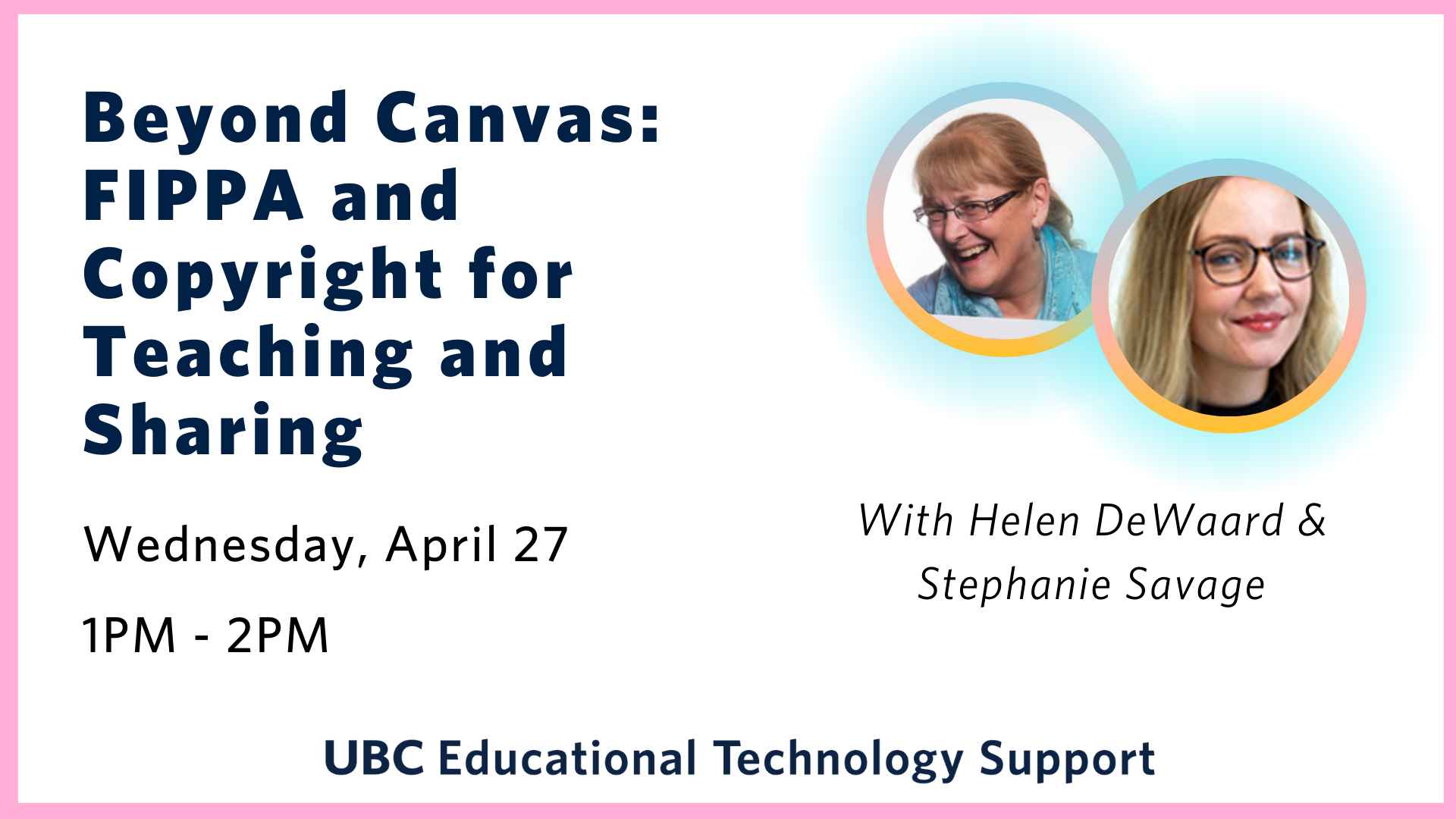
Beyond Canvas: FIPPA and Copyright for Teaching and Sharing


Join ETS learning designer Helen DeWaard as she welcomes Stephanie Savage, Scholarly Communications and Copyright Services Librarian at UBC Library, for a session on the basics of copyright for teaching and sharing. This session will primarily cover the perspective of instructors as users of copyrighted works in their teaching activities and will include information on user rights, creative commons licenses, online teaching, and considerations for sharing materials outside of the UBC classroom environment. A presentation will be followed with ample time for questions.

Facilitators: Helen DeWaard + Stephanie Savage

View the slide deck from this workshop

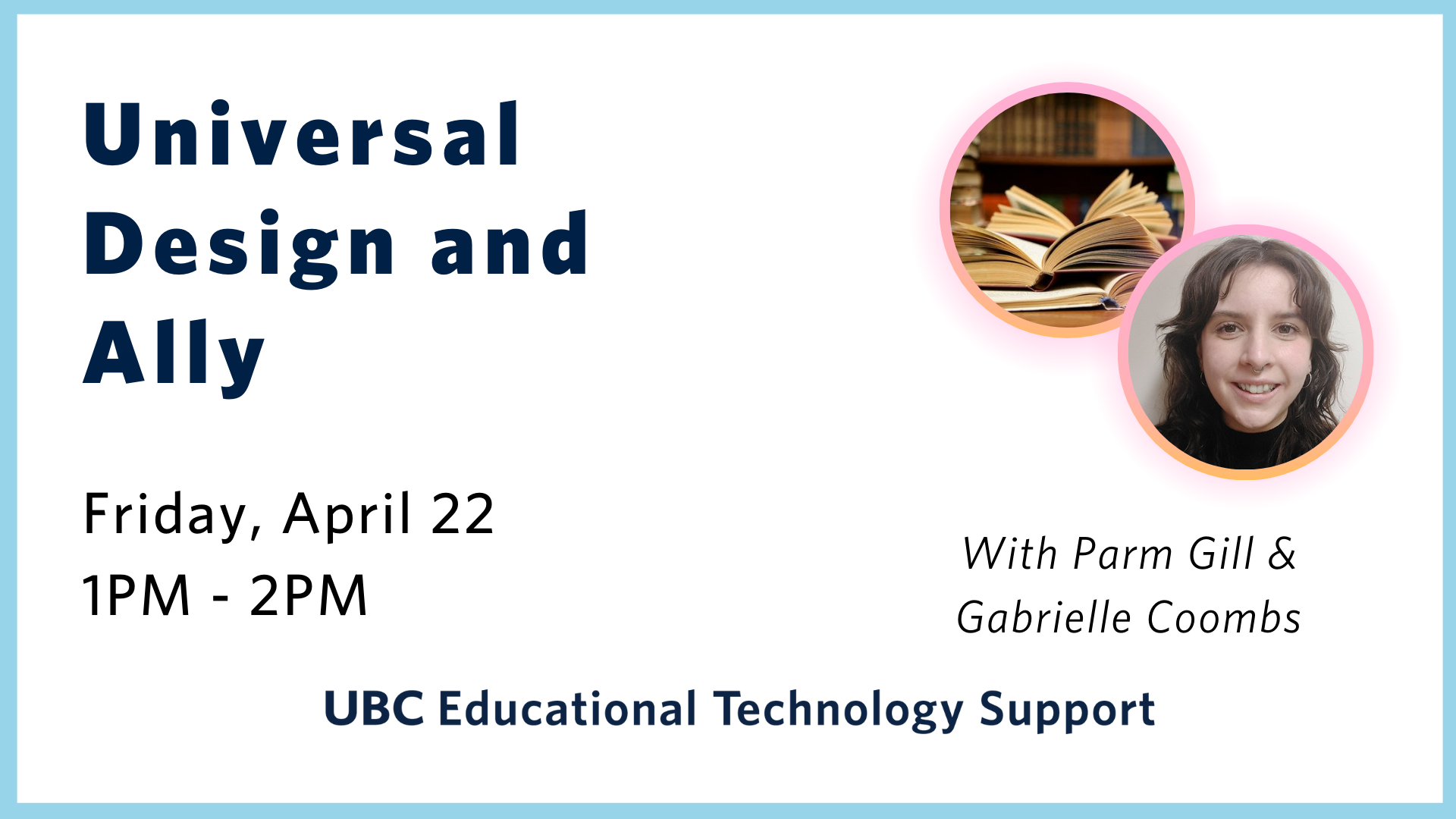
Universal Design and Ally


Universal Design for Learning (UDL) is a framework that addresses learner differences and helps to improve accessibility for learners. UDL is intended to give all students an equal opportunity to succeed. In this workshop, you will learn about the value of applying the UDL Guidelines and learn about some gaps in the framework. We will also take a look at tools and tips to help improve your courses.

Ally is one such tool that can be integrated in Canvas to help you begin. Ally can help make courses more accessible by providing you with a report containing practical guidance with its time-saving interface with identifies and ranks the improvements needed. It also allows students to download documents in alternative formats (like audio or electronic braille). This session will explore Ally in action, and walk you through how to request it for your course.

Facilitators: Parm Gill + Gabrielle Coombs

View the slide deck from this workshop

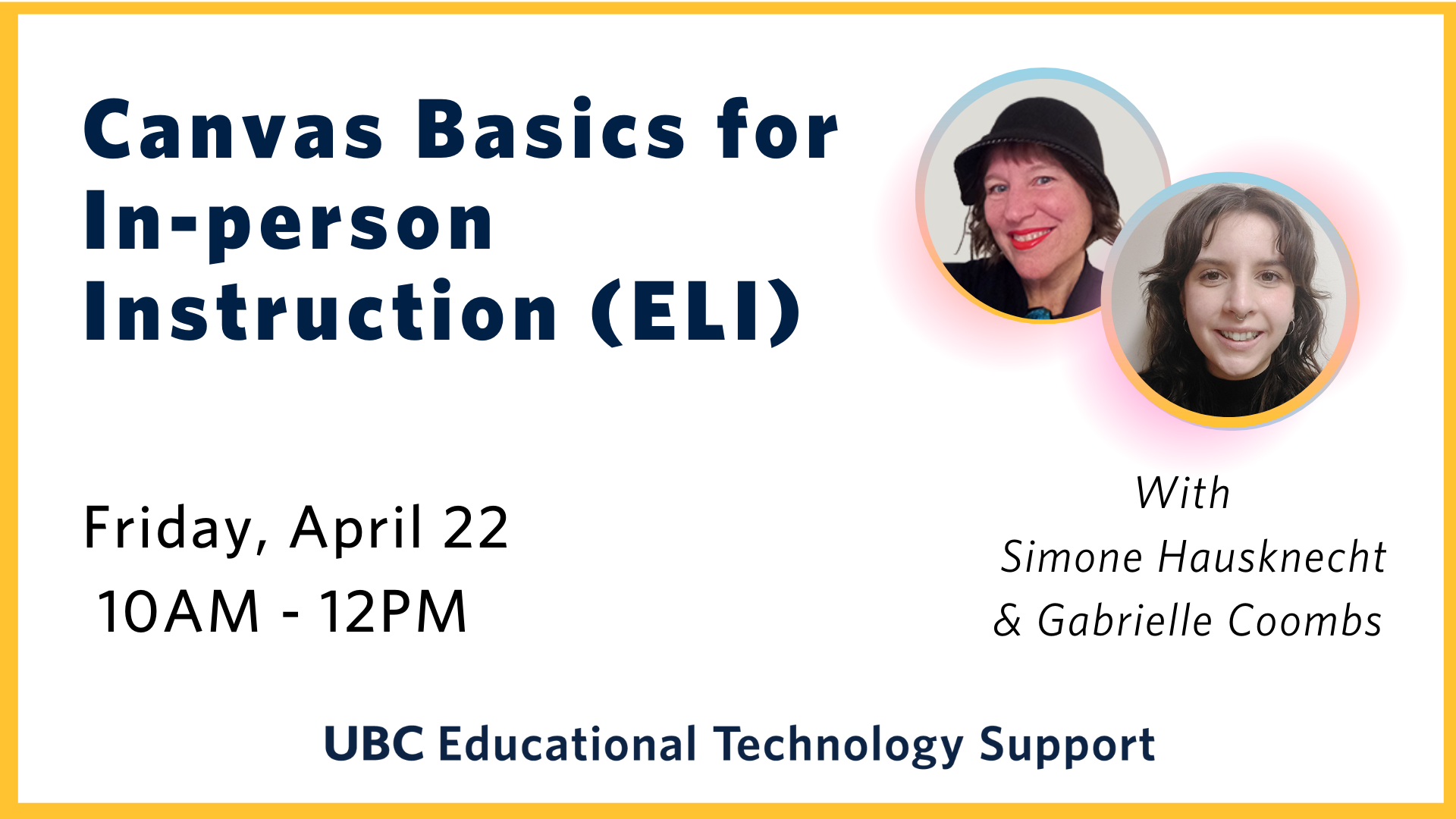
Canvas Basics for In-person Instruction (ELI)


Come join us in an interactive session where we will help you set up a basic Canvas shell and explore using the online learning environment to enhance your in-person classes. We will consider options such as entrance and exit slips, flipped classroom, online group work, creating spaces for handouts, pre-class multimedia activities.

Note: While this workshop is focused on instructors within the English Language Institute, anyone with questions about Canvas is more than welcome to join!

Facilitators: Simone Hausknecht + Gabrielle Coomb

Canvas Assignments Master Class


View video overview of the Canvas Assignments demonstration from the previous workshop.

Join our Canvas Assignments Masterclass workshop as we take a deep dive into navigating, building, and grading assignments, group assignments and peer review on Canvas. We will uncover the hidden quirks of using these tools, troubleshooting common and not-so-common problems, and answering all your questions regarding Canvas assignments.

Facilitators: Gabrielle Coombs + Hazel Chongoti

Learning Design Buffet

Interested in chatting about your course design strategies? Looking for additional insights and help? Come to our Learning Design Buffet meeting for a 1-on-1 consultation.

We will walk you through some of the time-tested strategies for improving the student experience in digital learning spaces and empower you with resources to meet your student needs!

Facilitators: ETS Learning Designers

Turnitin

Padlet officially approved to be used in the Faculty of Education after Privacy Impact Assessment (PIA)

All tools and technologies that are not officially supported by UBC, need to go through a Privacy Impact Assessment (PIA) process, before being implemented for teaching and learning and used by students.

Educational Technology Support (ETS) recently completed a PIA for Padlet, a real-time collaborative web platform in which users can upload, organize, and share content to virtual bulletin boards called “padlets”. At the Faculty of Education (FoE), padlets are embedded within the Canvas learning management system, allowing instructors and students to post content and respond to discussions.

What is PIA?

PIA is a risk management and compliance review process used to identify and address potential information privacy and security issues, thus avoiding costly program, service, or process redesign and minimizing exposure to potential privacy breaches. British Columbia’s Freedom of Information and Protection of Privacy Act (FIPPA) requires public bodies such as UBC to conduct a PIA for all new or substantially modified projects.

To learn more about the PIA process, visit the following article by Privacy Matters @ UBC:
Privacy Impact Assessment (PIA) at Privacy Matters @ UBC

Approval and mitigation plan

After conducting the PIA, Padlet has been officially approved to be used in the Faculty of Education following a mitigation plan to protect information and work in a safe environment. The mitigation plan includes disposing all personal information beyond the one-year mark, developing a records retention plan, discouraging registration using Google, Apple, or Microsoft credentials, using UBC password standards, and including privacy notifications.

To read the full report, click on the following link:
PIA Report – Padlet Use in FoE Courses

Get started using Padlet in your classroom

To learn more about Padlet and ways you can use it in your classroom, visit our new Padelt page on the ETS website.

Below is a Padlet from our Beyond Canvas: Collaborative Spaces workshop.

Made with Padlet

Padlet

Create a virtual classroom bulletin board and add numerous media resources with Padlet

Padlet is a real-time collaborative web platform in which users can upload, organize, and share content to virtual bulletin boards. It supports a wide variety of file types and allows you to embed content from anywhere on the web, including YouTube, Instagram, Twitter, Vimeo, and 400 other apps.

Padlet Updates | What is this tool for? | How do I get started? | Additional Resources | Similar Tools | Support Available


Padlet Updates

July 3, 2024

Padlet now supports auto-captioning for audio and video files. When a user uploads a video or audio file, captions will be automatically generated, improving accessibility for students and streamlining the captioning process for instructors. To enable the captions, click the cog icon on the video or audio player and select the language. The captions will be displayed at the bottom of the player. To learn more about this new feature, read Padlet’s article on auto-captioning. 


What is this tool for?

Padlet is a tool used to foster engagement by creating virtual bulletin boards for displays (also known as Padlets). More than one person can contribute to a Padlet wall, making it a great tool for teamwork and group projects. Different types of multimedia can be added to Padlets, such as videos, GIF’s, audio, text, images, etc. This makes Padlet a tool where instructors and students can participate in creative activities that are more engaging and meaningful. Instructors can share Padlets via links or QR codes and these can be easily accessed on computers and laptops, Chromebooks, iPads, or smartphones. 

Padlet also offers different options for privacy and security, allowing Padlets to be public, secret, password-protected, or totally private. 

Highlights

    •  Easy and intuitive
    •  Simple link sharing allows quick collaboration
    •  Sign up not required
    •  Objects Privacy and security options

How do I get started?

To start using Padlet, simply visit www.padlet.com and signup for an account. You can either use Padlet in your browser or download it as an application (Windows and Mac).

For more details about first steps see the section below (additional resources).

Additional Resources

Notice

As established by the Privacy Impact Assessment (PIA) for Padlet, make sure you always include the notice below. For more information about the PIA read the following article: Padlet officially approved to be used in the Faculty of Education after Privacy Impact Assessment (PIA)


Note about Privacy

Your personal information is collected under the authority of section 26(c) of the Freedom of Information and Protection of Privacy Act (FIPPA). This information will be used for the purpose of enabling your participation in UBC courses and evaluating your participation.  Questions about the collection of this information may be directed to lddi.educ@ubc.ca.


Similar Tools

  • Etherpad – a simple to use, “multiplayer” text editor which supports synchronous document editing and collaboration.
  • Mind Mapping Tools – visual diagrams used to organize information

Support Available

Support for this tool is provided by LDDI.

Eduardo Rebagliati


Eduardo Rebagliati

Learning Technology Specialist
eduardo.reba@ubc.ca | 604.827.0489


What are your main “big picture” responsibilities at LDDI?

I identify, analyze, and coordinate educational technology initiatives with various stakeholders to maximize affordances in learning experiences. I am responsible for envisioning solutions that improve usability, accessibility, interoperability and service sustainability.

What are some of your specific, hands-on, day-to-day tasks at LDDI?

I do privacy impact assessments of digital tools, manage educational technology initiatives, produce multimedia objects for projects developed at LDDI, do updates and maintenance of the LDDI website, and assist in the development of credit and non-credit courses in Canvas.

Who do you primarily work with (faculty, staff, other.)

I work closely with other members of LDDI, and with educational stakeholders including faculty, program leaders, researchers, support staff and students.

How does your work help support the LDDI office, and the Faculty of Education as a whole?

My work ensures that technologies appropriately, effectively, consistently and sustainably support the educational objectives in various programs across the Faculty of Education.

What are some major projects you are currently involved in? Are there any previous projects you would like to mention?

I am currently involved in developing faculty projects with the Emerging Media Lab, performing a Privacy Impact Assessment of tools that are used or will be used in the Faculty of Education, and supporting the development of non-credit courses.

What are your specific areas of interest in the field of educational technology or beyond? How is your work at LDDI contributing or playing into those areas of interest?

I am interested in discovering the unique affordances that technology brings to learning environments to create experiences that are more meaningful, efficient, engaging, and student-centred. Working at LDDI allows me to explore, learn, and stay up to date with educational technologies while being mindful of common issues around accessibility, usability, and privacy.

Credentials:

  • 2022 Master of Educational Technology, The University of British Columbia
  • 2012 Bachelor of Fine Arts (Hons. Music), York University
  • 2012 Cross-Disciplinary Media Certification, York University