Technology in Transit - Kahoot!

Technology in Transit – Kahoot!

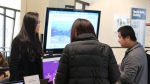
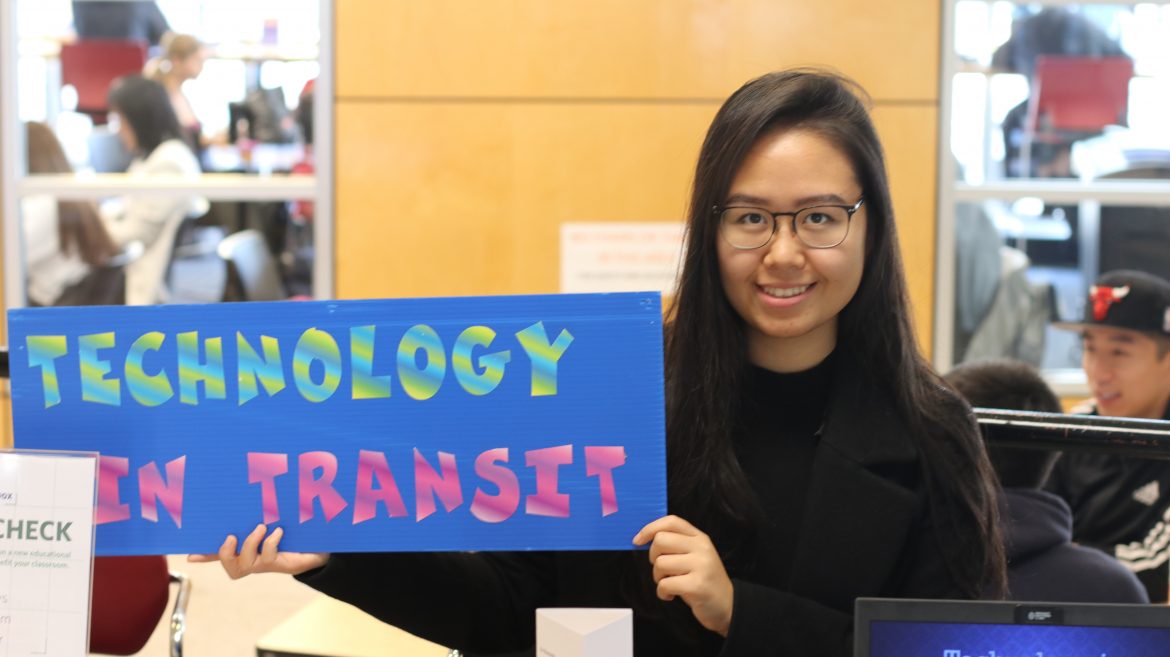
Technology in Transit is a monthly event organized by Educational Technology Support (ETS) office for students in the Faculty of Education to showcase their learning technologies. The purpose of this one-hour session is to raise awareness of different technologies and to show how to incorporate them into classrooms.

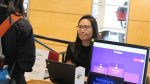
For the month of October, Jenny introduced Kahoot! Kahoot! is a multi-platform tool that you can use to administer quizzes, discussions or surveys. You can download Kahoot! on the Apple Store or the Google Play Store.

Kahoot! gets students engaged by turning learning into a game. There are 4 ways to create a Kahoot! game:

  • Quiz
    A multiple-choice question style, allowing you to assign right/wrong answers and turning points on/off.
  • Survey
    Alike a quiz, but without right/wrong answers. There is no point system or scoreboards; however, you will see a graph showing how many students chose each answer.
  • Discussion
    You can facilitate a quick discussion by using the discussion tool. This is alike the survey tool, but with only one question.
  • Jumble
    This kahoot is like a quiz, but challenges your students to put answers in the correct order rather than selecting one correct answer.

Presenter

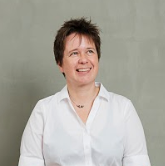
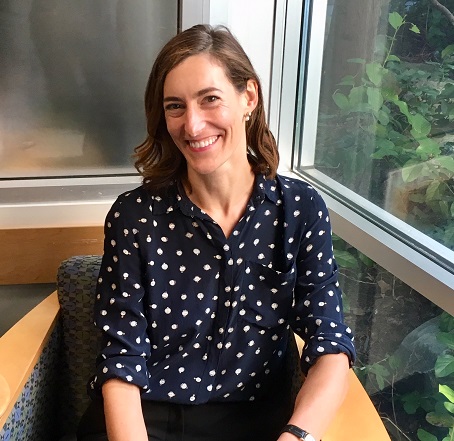
Jenny ZhuCanvas Technology Rover

Jenny started her Co-op term in May 2018 and works to make the Canvas migration from Blackboard possible. Jenny also provides technical support for faculty in the use of Canvas.

Technology in Transit

Is there an educational technology you are passionate about? Let us know.

Technology in Transit is a monthly event organized by the Educational Technology Support (ETS) office for students in the Faculty of Education to showcase their learning technologies. The purpose of this one-hour session is to raise awareness of different technologies and to show how to incorporate them into classrooms.

Event Details

Time: 12:00 – 1:00 pm
Date: Last Tuesday of every month
Location: Neville Scarfe Foyer

Can’t present at any of these dates? Contact us at ets.educ@ubc.ca or 604.822.6333 and we can make necessary arrangements.
Interested in presenting?

You can earn a certificate and a t-shirt!

Want inspiration?

Check out past presenters here.

TEC Expo 2018 Photo Gallery

Browse the event description, event schedule, and presenter information on the TEC Expo 2018 webpage.

Photo Gallery

TEC Expo, or Technology Enhanced Classroom Expo, was created so faculty, students, staff, and guests can learn from each other. Each year we bring the Faculty of Education community together in the Scarfe foyer to share our biggest success stories and challenges when it comes to teaching with technology. This year was our fifth annual TEC Expo, and thanks to all the presenters and the staff in PDCE and ETS it was a success! We had a total of 21 different presenters, with topics ranging from a web conference platform for online lectures called Collaborate Ultra to an assessment application for student feedback called ComPAIR.

Our first day explored pedagogical tips such as how to use information retrieved from Canvas analytics to understand student engagement and improve instructional design. We were also happy to welcome back the Emerging Media lab (EML), and this year they presented both virtual and augmented reality. With the Stanley Park Virtual Field Trip
you could walk through Stanley Park, using the controller to select a point ahead of you and teleport there. You could spin around to view the full 360 environment, and even pick up 3D objects. To allow users to explore augmented reality, EML also presented HoloBrain. Why get all messy when you can dissect a brain virtually? Whether you are an instructor at the Faculty of Medicine at UBC or just interested in human biology, HoloBrain is intended to be a useful teaching tool in neuroanatomy instruction. We were also happy to welcome a virtual presenter, Yifeng Wei, who could not be in Vancouver for the event. Wei presented Teach Mental Health: An Online Mental Health Literacy Professional Development Opportunity for Educators.Teach Mental Health is an online course for pre-service teachers to educate them
about mental health and mental illness.

Our second day presentations were more hands-on. Cédric Lejeune presented the micro:bit – a tiny, programmable computer to make learning STEM fun. At his table, you could play a operation-esque game moving a conductive loop through a wire without touching it. If the loop touched the wire, the circuit would be complete and a buzzer would go off. If you stopped by Zoe Lawler’s booth you could also try hand weaving, by either making your own creation or contributing to a large project. Weaving teaches fine motor skills and draws from indigenous knowledge, which can be a fun classroom project. Other educational tools featured included Softron Answer Forms. that helps educators save time by auto-marking any test in PDF or word.

Thank you to all the presenters and attendees for making TEC Expo 2018 a success! We hoped you learned about new technology and how it can be used to facilitate teaching and learning, and started some constructive conversations about pedagogy.

Interested to learn more?

Keep up to date on ETS events throughout the year by visiting our events calendar! You can also reach out to ETS by contacting us at 604-822-6333 or ets.educ@ubc.ca

Disable Canvas export course content

How to remove the option for students

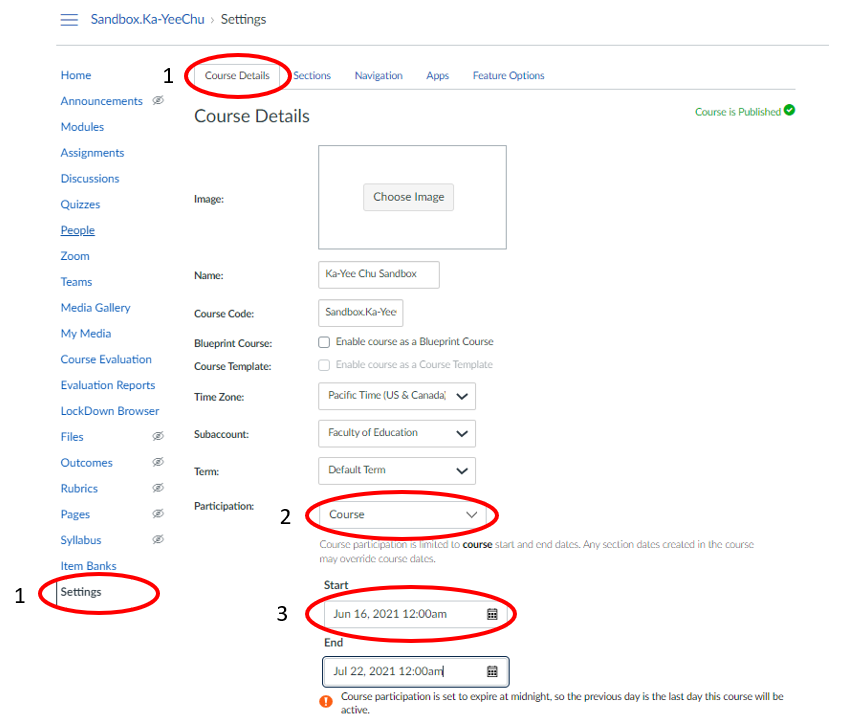
  1. Go into Settings at the bottom of the left sidebar.
  2. Scroll to the bottom of the page and deselect the option for Offline Course.
  3. Check if this worked by entering Student View located on the top of the right sidebar. On the Home page, the Export Course Content button should be gone.

[youtube]https://www.youtube.com/watch?v=B8Y22hJe1Es[/youtube]

EML Visits

The Teacher Education Office, the Office of Research in Education and the Dean’s office have all visited the Emerging Media Lab, and you can take a tour too!

UBC’s Emerging Media Lab (EML) is a space where faculty, students and staff can explore new technology such as Augmented, Mixed and Virtual Reality and how it can be used to enhance learning and research. Every Tuesday and from 12:00 p.m.-1:30 p.m. in Neville Scarfe Room 1 EML is hosting Drop-in demos to all students, staff and faculty. Check out EML’s website to learn more.

Scarfe Teaching and Learning Studios

Introduction to the Project

The UBC Faculty of Education was successful in its UBC Learning Space Improvement Project bid to refurbish the computer labs in Scarfe 1006 and 1007 into flexible teaching/learning spaces effective summer 2018. Students have told us for many years that they lack space to work on collaborative projects, which form such a large part of many courses, particularly in the BEd Program, and the Scarfe computer labs have become less and less frequently used, especially as most students now have their own devices. The project proposal and adjudication process was rigorous, and our Faculty’s proposal was ranked among the top four across the campus to be funded.

The new design was based in part on UBCO’s Learning Lab (https://innovativelearningcentre.ca/about/physical-space/) and includes very flexible seating as well as several fixed computer stations with some specialized, UBC-licensed software (SPSS, Camtasia, etc.). The two spaces will allow students to work on projects together, practise-teach in small groups, and they will also be bookable by instructors who wish to schedule teaching and learning activities. This is an opportunity for those who are keen to model how to teach in flex spaces.

An advisory committee was established (based on an invitation to all faculty, staff and grad students) and has developed guidelines for scheduling use of the studio, evaluate how the rooms are used, and address questions or concerns, etc.

Principles of Use

Established May 1, 2018

Vision:

The Scarfe Teaching and Learning Studios are student centred spaces designed to foster interactive work and facilitate teaching and learning in a flexible environment.

Faculty of Education students, faculty, staff, researchers, and visiting scholars are invited to use the Scarfe Teaching and Learning Studios for workshops and events that demonstrate the pedagogical capacity of the spaces. These include practice teaching and model teaching, class visits when a flexible environment is required, and group project work. Only one of the two rooms will be bookable at any one time to ensure that space is available for drop in student use.

What the Scarfe Studios are not:

  • Silent study space
  • Regularly scheduled classroom space

Booking:

  • Bookings are managed through a Faculty of Education form: http://it.educ.ubc.ca/book-a-teaching-and-learning-studio/
  • At the time of booking, users are required to provide a written rationale (no more than 50 words) that shows the proposed program aligns with the principles of use.
  • During the months of September and October, booking preference is given to workshops and events that provide examples of teaching and technology integration in flexible environments.
  • Outside of September and October, booking preference is given to students using the space in a collaborative, creative way.

One-Button Studio Space Revamp

UBC Studios has added a new DIY-Media Space to their One-Button Studio.


Eric testing out the DIY-Media space

The new DIY-Media space within the One-Button Studio lets you use a writing tablet in conjunction with your presentation.

The One-Button Studio is a designated space within UBC Studios, located in the University Services Building at 2329 West Mall. The One-Button Studio is a service available to UBC faculty and staff to create video presentations, lectures and announcements. As the name suggests, the One-Button Studio was designed to be a video production option that is simpler to use, with only a few steps to get started.

The original setup of the One-Button Studio allowed you to record yourself while your presentation slides were projected in the background.

To set this up, you needed to plug in a USB drive that your video will save to, attach your laptop to the projector to get your presentation slides loaded, and finally, press a big button to start/stop recording. Once you stopped the recording, the video file will be saved onto the USB drive you attached.


What has changed?


Recently, UBC Studios has added a table-top recording station, the DIY-Media Space, to the One-Button Studio. This will allow you to live stream, do lecture recordings, podcast recordings, and presentations. The DIY-Media Space also has a screen-writer, which will allow you to draw on presentation slides or a web page while you are doing your recording. The table-top DIY Media Space also uses a more optimally mounted microphone on the table-top station, making the audio quality in the new setup improve as well.

The table-top DIY-Media Space will use Camtasia to record your presentation, writing tablet, video, and audio. The setup process will be a little different from usual, having you upload your slides into the table-top computer instead. Keeping with the simpler to use approach, UBC Studios has done its best to minimize setup time by having a physical copy of instructions laid out on how to use the tablet-writer, along with hotkeys that allow you to change your pen’s colour and erasing your work. Once you are finished the recording, stop the recording within Camtasia, and transfer the recording file onto your USB drive.

If you do not wish to use the new table-top DIY-Media space, the option to use the One-Button Studio, as it was before, is still available!


Interested in using the One-Button Studio/DIY-Media Space?


To book the One-Button Studio/DIY-Media Space, please contact UBC Studios by phone at 604.822.9800 or by email at ubc.studios@ubc.ca. This service is free to use for faculty and staff members of UBC.


Take a look at the photos below to see how the new set-up works!


TEC Expo 2017 Photo Gallery

Browse the event description, event schedule, and presenter information on the TEC Expo 2017 webpage.

Photo Gallery

With TEC Expo 2017 behind us, it is time to reflect. TEC Expo, or Technology Enhanced Classroom Expo, was created so faculty, students, staff, and guests can learn from each other. Each year we bring the Faculty of Education community together in the Scarfe foyer to share our biggest success stories and challenges when it comes to teaching with technology. This year marked the fourth TEC Expo, and as with every year we tried to make it a more inclusive, accessible, and innovative event. We incorporated live video streaming for the first time, and ETS’ very own Bill Pickard conducted interviews with each presenter. All the videos can be viewed on the Professional Development and Community Engagement Facebook page. Hundreds of people joined us by watching live or after the event. The event was also live-tweeted using the #TECExpo2017 hashtag. Another innovative addition to the event this year was the Emerging Media Lab, or EML. The EML is an exploratory space for people to discover the possibilities of virtual and augmented reality. If you are UBC faculty, student, or staff and didn’t get a turn in VR during TEC Expo, you can drop in on Tuesdays and Thursdays from 12:00 – 1:30pm at Neville Scarfe Building Room 1. The EML will be located in Scarfe until the end of August. We continued an innovation from the 2nd and 3rd TEC Expos with a second day dedicated to Educational Making. There were opportunities to learn about food, knots, jewellery making, coding, robots, weaving, book making, button making, creating augmented reality experiences, experiencing a virtual stage, and the UBC seed library. It was an amazing array of educational makers sharing their experiences. As always, it was a joyous occasion and our special honour to host the Faculty of Education’s fourth annual TEC Expo. We hope it helped you learn about new and emerging ways of teaching and learning, and facilitated constructive conversations about pedagogy. The presenters were an inspiration, and if you did not have the privilege to attend we encourage you to watch the archived live stream videos on the PDCE Facebook page. Learn more about the presenters on the archived TEC Expo 2017 site.

Interested to learn more?

Keep up to date on ETS events throughout the year by visiting our events calendar! You can also reach out to ETS by contacting us at 604-822-6333 or ets.educ@ubc.ca

Recording a meeting in Blackboard Collaborate Ultra

In some courses, you may be required to use Blackboard Collaborate Ultra, a modern, browser-based web conferencing solution. This is a cloud-based service that operates on servers located within Canada. However, recordings are managed on servers outside of Canada. By agreeing to use this service, you are consenting to the possible storage of recordings, (and any other personal information that you choose to share) outside of Canada. If you choose not to provide your consent, please contact your instructor to make alternate arrangements.
Login
When you first login to the session, type in your name
Click ‘Join Session’

Tutorial

You’re given an option to go through a tutorial, which you’re welcome to do so.

Setup Camera

Next you’ll want to setup your microphone and Camera. First click on the right hand menu button on the bottom right
Then click ‘Setup your Camera and Microphone’

Accept-Sound

Your browser will prompt you for permission to use your mic and webcam, so click Accept (note that this might look different in other browsers.
check Sound Check Video
You’ll then step through a couple of screens to help you get your mic and web cam working, so click ‘Yes’, to continue.

Share Audio and Video

Now that you’re all set up, you can toggle your mic on and off
Or you can toggle your webcam on and off

Share Powerpoint
In the right hand menu, click on the ‘Share Content’ tab

Share Powerpoint

First, click ‘Add Files’. Find your files on your computer to upload them
You can upload multiple files at a time (they may take a while to upload and convert)
When you’re ready to present, select the file you want to show to the group, and click ‘Share Now’

Select Slide

You’ll notice that after sharing the presentation, nothing will show in the central area of the meeting. Just select a slide for it to show up (this might take a few seconds)
You can navigate through just like other presentation software
Click the stop icon to stop sharong
Click on the back arrow to select a different file to share (this how you can switch between multiple presenters using their own presentations)

Before you start recording your presentation, please do a quick test run with your group to make sure you can hear each other and you can switch presentations easily (don’t worry about speed).
We’d like you to try to do just one recording, so doing this practice beforehand can help you researse.

Start Recording

To start recording, go into the left hand menu
Click ‘Start Recording’ to begin your presentation. This also acts as the ‘Stop Recording’ button too.
When you’re finished , and you’ve stopped your recording, you can leave the session.

To download a recording, you would have to change it in the session settings prior to the start of the session. Make sure the “Allow recording downloads” tickbox is checked.

Collaborate Ultra Session Settings

Collaborate Ultra Session Settings

If you have recorded a session and have not allowed a recording download, you will have to change the end date of the session, and then check the Allow recording downloads box. You can view your previous sessions by the dropdown menu on the right-hand side.

Collaborate Ultra Session List

Collaborate Ultra Session List

Find the session that you want to download and change the end date to a future time (past the current time)

Collaborate Ultra Session Dates

Collaborate Ultra Session Dates

The session will now appear in the “Upcoming sessions” dropdown instead of “Previous sessions”

Select the session from the Upcoming sessions menu and tick the Allow recording downloads in the Session settings as stated above.

Navigate to the “Recordings” list of the Collaborate Ultra session by clicking on the menu in the top left corner

Collaborate Ultra Recordings

Collaborate Ultra Recordings

You can download the video recording by selecting the Recording options button on the right next to the title of your recording session.

Collaborate Ultra Recording Download

Collaborate Ultra Recording Download Menu


TEC Expo 2018

TEC Expo 2018 banner

TEC Expo 2017 Videos


View all of the TEC Expo 2017 videos on PDCE’s Facebook page.

TEC Expo Archives

Event Description

On July 4th and 5th this year, ETS will be hosting its fifth TEC Expo event in the Scarfe building foyer at 2125 Main Mall. The Technology Enhanced Classroom (TEC) Expo is an annual event designed to showcase and celebrate creative and innovative uses of technology in face-to-face, blended, and online classrooms within the Faculty of Education.

Event Information


Date: July 4th and 5th, 2018
Location: Scarfe foyer
Time: 12:00 – 1:30pm
Registration: not required. The event is free.

Need Help?

For more information, please contact the ETS office at ets.educ@ubc.ca or by phone at 604 822 6333.

Came to the Expo? Fill out our feedback form!

We would like to hear your thoughts about the event. Fill out the form here.


Opening Remarks


Ali Abdi Bio Photo

Dr. Ali Abdi

Department Head
Department of Educational Studies (EDST)


Presenter Information July 4


Video Conferencing in Canvas Using Collaborate Ultra in PCOH 1306A

Dr. Tom Sork Bio

Dr. Tom Sork

Collaborate Ultra was used in a new fully online course (EDST 525—Program Evaluation in Adult and Community Education) for “live” interactive video sessions to supplement asynchronous Canvas sessions. Each session was recorded—with a link posted to Canvas—for later viewing by those who could not participate in the live sessions.


Online Capstone Projects: A Remote Experience

Dr. Mari Pighini Bio

Dr. Mari Pighini

Between 2017 and 2018 instructors and students were introduced to CANVAS, switching from CONNECT, and some of where introduced to MATTERMOST chat as a pilot project. Some graduate students experienced the transition to both platforms while in the middle of their Capstone, graduating project. These students were also invited to use Mattermost Chat as an alternative or complementary way to share material and content, and interact with others. In this presentation, I share examples that illustrate the use of combined and integrated platforms + Chat App that represented pedagogical tools of mentoring and support for students. Invited students (live or online) will add their voices with their experiences throughout the process of completing their Capstone graduating project.
Evolving Education: An Exploration of Virtual and Augmented Reality

Sabrina Ge Bio

Sabrina Ge
Co-Presenter: Kevin Yang

The Emerging Media Lab provides a collaborative space for UBC faculty, students and staff to explore emerging technologies. Come experience Geography’s virtual tour of Stanley Park and Medicine’s HoloBrain, and find out how you can use these technologies your teaching and learning.


Introduction to Various Cloud Teaching Apps

Austin Uzama Bio

Dr. Austin Uzama

This is a research booklet written by me that acts like an encyclopedia for any teacher interested introducing technology into his/her class. It contains various cloud teaching apps that can be used by any level of teacher to engage students. I will introduce some of these apps., like ‘flocabulary, iTooch Middle School, Mathalicious, Boogie Bot etc and how it can be introduced into teachers’ lesson plans.

Preview of VR Viewpoints

Kyle Stooshnov

A new stage for teachers has recently emerged: 360º cameras for spherical video and panoramic photos. While not a truly immersive medium compared to VR’s six degrees of freedom (where viewers can look and move around the sphere), the fixed point of view allows a simulation of interaction.


Giving it a Human Touch: Use of Audio and Video Recording in Online Teaching

Hongxia Shan Bio

Dr. Hongxia Shan

The presentation will focus on the trails and errors that I have experienced using audio and video recording in my online courses. I propose that audio and video recording can help lend a human touch to the online environment although there is a learning curve involved.


Search, Cite, Strategize: Education Library Research Tutorials

Nick Ubels Bio

Nick Ubels

Not sure how to find the right resource for your lesson plan? Do you want to develop your research skills to become more efficient and effective? The Education Library’s new video tutorials support independent learning about information literacy and enhance academic research skills.


Using Canvas Analytics to Improve Student Learning

Dr. Leah Macfadyen

Dr. Leah Macfadyen
Co-Presenters: Will Engle, Stoo Sepp

Learning Analytics can be a useful tool for understanding how students are engaging with, and learning from, course materials. This information can be used to improve instructional design and student learning. Come demo available Canvas-based analytics tools that can inform your teaching and learning.


Teach Mental Health: An Online Mental Health Literacy Professional Development Opportunity for Educators

Yifeng Wei Bio

Yifeng Wei

I will introduce an online mental health literacy professional development opportunity for pre-service teachers to prepare future teaching. It features live expert presentations, PowerPoint presentations,animated video clips, and online forums and activities to engage audiences.


First School of Kinesiology Undergraduate Course Taught on Canvas

Janna Taylor Bio

Janna Taylor

In January 2018, KIN 481 was taught on Canvas! Having taught this course face-to-face for the past 12 years, I wanted to teach on line so it would be more accessible to students. The experience was amazing! I have many reflections I would like to share in regards to shifting a course face-to-face to teaching it online.

Scarfe Teaching and Learning Studios

Through the UBC Learning Space Improvement Project the computer labs in Scarfe 1006 and 1007 have been refurbished into flexible teaching and learning spaces effective summer 2018. Come check out a slideshow of these new spaces! More info here.

Opening Remarks

Susan Crichton Bio Photo

Dr. Susan Crichton

Associate Dean
Faculty of Education
UBC Okanagan


Presenter Information July 5

Seeing Fast and Slow: Engaging Students in Science Through Slow Motion Videos

Marina Milner-Bolotin Bio

Dr. Marina Milner-Bolotin
Co-Presenters: Dr. Valery Milner, Walter Wasserman, Oded Aminov

We will show how we use slow-motion videos to promote science learning and inspire STEM students in inquiry-based learning. Slow motion videos allow students to take full advantage of modern technology to pay attention to details that would be unnoticeable otherwise.


Using Threadz to Visualize and Understand Learner Engagement in Canvas

Dr. Leah Macfadyen

Dr. Leah Macfadyen

I will demo the Threadz tool for Canvas, which extracts hidden information about learning network interactions between students in your course forums, revealing valuable information about the dynamics of your course and its constituents such as learner isolation, non-integrated groups, instructor-centric discussions, and ‘power’ users.


From Lecture to Studio: An Integrated Approach to Teaching First Year Physics

Dr. Kathleen Foote

Dr. Kathleen Foote

This presentation will include design principles and pedagogy behind SCALE-UP, an integrated lab, lecture, tutorial for large enrollment physics courses in a room designed to promote interaction and engagement. I describe implementing this approach at the University of Auckland in New Zealand.


The Use of Padlet as a Forum for Discussing Theoretical Texts in the English Language Classroom

Carla Figuerdo Bio

Carla Figuerdo

Grounded on Padlet’s features, this presentation aims to discuss how feasible this technological tool can be for second language education at the university context, and more specifically, its advantages and disadvantages as a forum for promoting reflections on theoretical readings done by undergraduates majoring in English.


Evolving Education: An Exploration of Virtual and Augmented Reality

Sabrina Ge Bio

Sabrina Ge
Co-Presenter: Kevin Yang

The Emerging Media Lab provides a collaborative space for UBC faculty, students and staff to explore emerging technologies. Come experience Geography’s virtual tour of Stanley Park and Medicine’s HoloBrain, and find out how you can use these technologies your teaching and learning.


Scarfe Sandbox EdTech Library

Mary Kostandy Bio

Mary Kostandy

Scarfe sandbox EdTech library builds on conversations with students and instructors and research into recent trends to gather the most prominent EdTech tools. It maps out different EdTech categories and links to in-depth resources in the Scarfe digital sandbox.


Facilitating Peer Learning Through Comparisons in Your Classroom: A Guide to UBCs ComPAIR Software

James Charbonneau Bio

Dr. James Charbonneau
Co-Presenters: Tiffany Potter, Letitia Englund, Pan Luo, Andrew Gardener

This presentation introduces ComPAIR, an innovative peer feedback and teaching technology developed at UBC that provides students a safe, flexible environment to develop the skill of evaluating another person’s work, and in turn, receive evaluations from their peers.


Building Community Around Online Courses and Programs – A Case Study from the MET Social Lab

Erica Hargreave Bio

Erica Hargreave

Community is essential for student growth, especially in an online study environment, that can otherwise be isolating. Join Erica in exploring how community can be fostered in online programs and courses to promote collaboration and a sense of belonging. She will share examples from both UBC’s MET Community and her own online courses at BCIT.


TGFU – Teaching Games For Understanding

Marcelo Paz Bio

Marcelo Paz

How to use Kahoot! to make learning awesome!
Kahoot is a game-based and trivia platform used in classrooms, offices and social settings. Sign up to create, play and share engaging quizzes on any topic!


Softron Answer Forms – Your Tests, Our Software, Better Assessment!

Ash Misquith Bio

Ash Misquith

Are you a teacher? Do you want to save a substantial amount of time when administering and marking tests & quizzes? Then come take a look at Softron! Sofron allows teachers to take any test (PDF, word) that they already have, administer it to students, and have it auto-marked.


Discover the Features of the micro:bit and How to Use It

Cédric Lejeune Bio

Cédric Lejeune

What is the earth gravitational constant ? What is a closed circuit ? Why do we have seasons on earth ? Those are all questions that can be answered with your students through hands on activity using the micro:bit. This presentation, will go over three lesson plans built to answer those questions and will explore ideas on how to integrate the micro:bit into your classroom.


Exploring Weaving

Zoe Lawler Bio

Zoe Lawler
Co-presenter: Mairi Anderson

In this station, everyone is welcome to try their hand at weaving! You may contribute to a large group project, and/or make your own woven creation. These skills can be easily shared with any age group, as either a team/collective classroom project or an individual creation. The creations rely on fine motor skills and draws from indigenous knowledge.


Scarfe Teaching and Learning Studios

Through the UBC Learning Space Improvement Project the computer labs in Scarfe 1006 and 1007 have been refurbished into flexible teaching and learning spaces effective summer 2018. Come check out a slideshow of these new spaces! More info here.