Getting ready to teach with Canvas? We have some suggestions for you. These steps will ensure you are ready for the upcoming term.
Steps |
|
|
Setting up your course
Getting ready to teach with Canvas? We have some suggestions for you. These steps will ensure you are ready for the upcoming term.
Steps |
|
|
By default, your Canvas course will be closed for student access eight weeks after a term. You can check the Canvas access dates for each term.
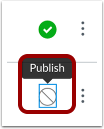
You can extend the closing date manually by yourself. From the navigation bar on the left side of your Canvas course, click Settings > Course Details. Make sure under the Participation section, Course is selected. Then enter a new closing date. You can also give students early access to the course by entering an earlier start date than the term start. Note that the course will need to be published for students to be able to view it. Finally, click Update Course Details at the bottom of the page.
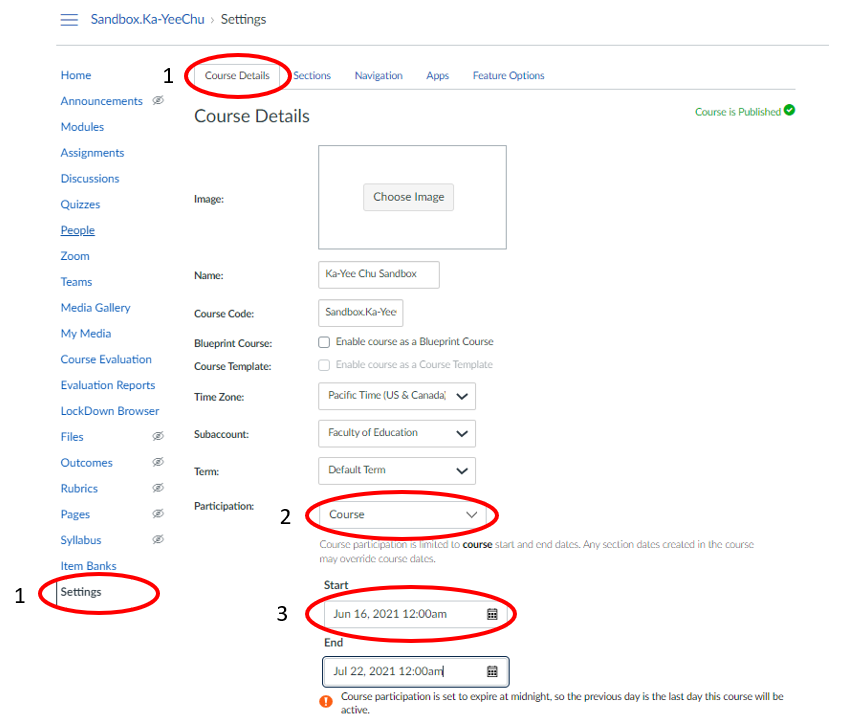
To give students early or extended access your Canvas course perform the following:
To double check if students have been enrolled, click on People in the left navigation bar.
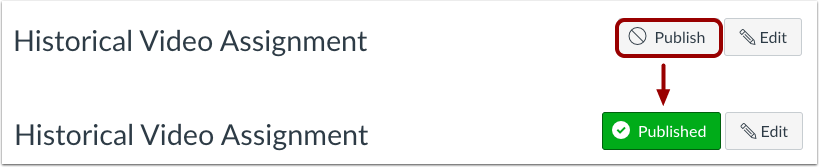
It’s just four easy steps to open your course early to students.
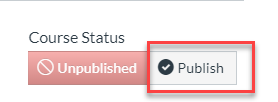
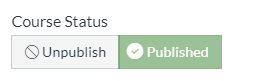
Please note that this may not show your course right away. By default, courses are available between the Canvas Access Dates for the listed term. You can modify the dates to give students early access to Canvas (how-to link), or extend their access once the course is over (how-to link).
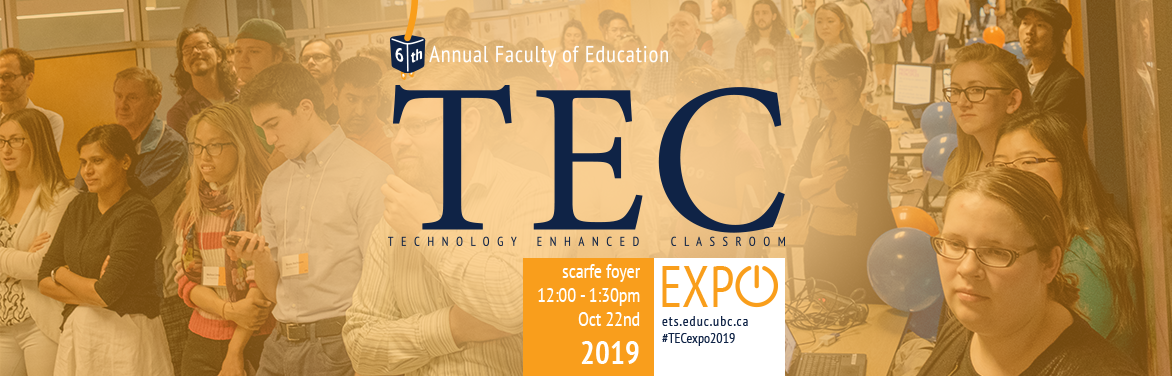
On October 22nd this year, ETS hosted its sixth TEC Expo event in the Scarfe building foyer at 2125 Main Mall. The Technology Enhanced Classroom (TEC) Expo is an annual event designed to showcase and celebrate creative and innovative uses of technology in face-to-face, blended, and online classrooms within the Faculty of Education.
For more information, please contact the ETS office at ets.educ@ubc.ca or by phone at 604 822 6333.

I’ll demonstrate and discuss how I used a collaborative video annotation tool in place of live seminars in my online course. CLAS (for Collaborative Lecture Annotation System) was developed at UBC, and is actively in use to support learner engagement with video (as well as audio and now image) resources in a variety of ways: whole-class annotation of lecture videos, one to one instructor feedback on learner ‘performance’ of different kinds, asynchronous group ‘video seminars’ and more.

This presentation will share a blended learning model, that combines online practices and land-based pedagogy, used in a community-based Indigenous Teacher Education program. Blended learning positively influenced connectedness among Teacher Candidates in rural locations. Implications for blended learning can foster a sense of belonging, which may enhance learning experiences and engagement.
To support learning and research and to provide UBC with a leading edge among other top universities, the Emerging Media Lab provides a collaborative space for UBC faculty, students and staff to explore emerging technologies and develop innovative tools and solutions. We will be giving demos of virtual reality and discussing the immersive and transformative learning possibilities that virtual and augmented reality may provide for students of any background and level.

Learning Analytics can be a useful tool for understanding how students engage with, and learn from course materials. The three tools, MyLA, Threadz and OnTask, which will be demoed, can support student and teacher in an environment where learning-management-systems are on the rise. Using Learning Analytics to promote self-directed learning renders these tools valuable for education.

Drop by our MAKER table and try your hand at a design or coding challenge. The possibilities of design challenges are limited only by time, materials and the constraints you as a teacher apply. Chat with Scott Robertson, PHD student and Eric Lee, Cognitive Systems Undergrad who are working on a TLEF funded project with Lorrie Miller, Marina Milner-Bolotin & Yvonne Dawydiak. Visit the Scarfe Digital Sandbox for more information!


Is your online content too “texty”? Looking to enhance interaction? In this demo, we share our experiences using H5P.org and Kaltura to build activities such as interactive images, slideshows, and videos as part of an online orientation workshop for international students. By integrating H5P’s game-like tools, we sought to embed interaction within the structure of the online module itself. The activities work across devices and facilitate rapid uptake with minimal instructor intervention.


The Education Library will showcase Curio, an online collection of educational content from the CBC including documentaries, archival materials, and teachers guides. Also featured will be Ozobots, a resource to support coding literacy and computational thinking. An educational streaming video platform allows teachers to incorporate current and historic content in an engaging and supported way.



In our presentation we will describe how we designed VR and AR resources for elementary and secondary STEM teachers and how these resources have been incorporated in STEM methods courses in teacher education, as well as during the Family Math and Science Day at UBC Faculty of Education.

Manager, Learning Design
faeyza.mufti@ubc.ca | 604.822.3577
I ensure that LDDI as a team is able to deliver top-class service to our faculty. We do our best to look ahead, explore and innovate to support the new and emerging needs of our instructors and faculty.
My interests include exploring new trends and models of technology-enabled learning in higher education. My work at LDDI allows me to stay in touch with the developments in this area. My interactions with faculty further provide insights into the effectiveness of different modes of online teaching.
The broad scope of my work and day-to-day responsibilities fall into all four of the major areas that LDDI is serving, namely: Learning Design, Teaching with Technology, Innovation, and Professional Development.
Love of the game!
Let not tools dictate how you want to teach, rather use tools for how you want to teach.
Online teaching opens avenues to try out new ideas and let go of old assumptions that have neither benefitted teachers nor the students.
Keep it simple and flexible.

Director, Learning Design
natasha.boskic@ubc.ca | 604.822.1831
I think about the direction our Faculty may go in relation to innovation and good practices in teaching and learning approaches, in alignment with the strategic goals of the Faculty of Education and the University.
My specific interests are in responding to the needs of an increasingly wider and more varied audience, finding solutions to maintaining high quality standards of the learning environment design, while also meeting specific requirements of temporal, geographical and cultural diversity.
I am connected with the BC, Canadian and international community, which helps me bring new ideas and solutions for technology integration and practice to our Faculty.
In addition to my background in education, I am also a writer and poet.
Boskic, N., Sork, T. J., Irwin, R., Nashon, S., Nicol, C., Meyer, K., & Hu, S. (2018). Using technology to provide higher education for refugees. In Jean-Francois, E. (Ed.), Transnational perspective on innovation in teaching and learning technologies (pp. 285-304). Leiden: Brill. Sense.
Decide how you would like to access Mattermost.
You can access Mattermost at UBC through the website (https://mattermost.lthub.ubc.ca) or by downloading apps. Apps are the best way to access it anytime, anywhere. If you would like the Mattermost app on your devices, please keep reading. If you prefer giving it a try on the web version, feel free to jump to the bottom of this page!
Install the app.
You can download a mobile app from the App Store or Google Play. Search for Mattermost and download the first result. You may see “Mattermost Classic” – this is an older version and not recommended.
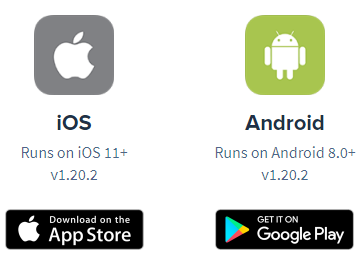
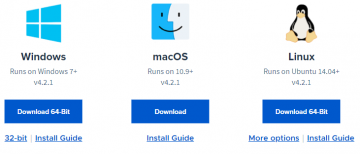
You can also download Mattermost for Windows, macOS, or Linux. Just go to mattermost.com/download and scroll to the bottom.
Log in to the app.
Once you have installed an app, you will need to log in. UBC’s Server URL is https://mattermost.lthub.ubc.ca. The name is UBC. To log in, enter your CWL username and password.
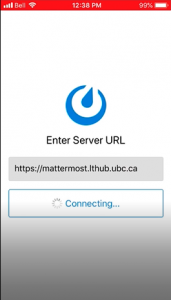
Logging in to the mobile app
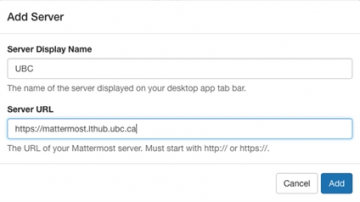
Logging in to the desktop app
Use Mattermost Web Version
Simply log in to Mattermost with your UBC CWL by clicking the link below.
https://mattermost.lthub.ubc.ca
Extra tips
That’s it! You are ready to go and will see all your Mattermost teams. If you don’t see one, ask your team admin for the invitation link. Credit course teams will show up automatically, but ask your instructor if you don’t see your course.
When a course is imported or copied for a new term on Canvas, you will find that previously created Group Sets are no longer there. All Group Sets are combined into a new one called “Project Groups” which is an empty list. If the People link in your course looks like the screenshot below, you need to re-create Group Sets and Groups.

Step 1) Create Group Sets
Group Sets can be created from the People link in your course. Group Sets are groups of groups. Assignments or discussions can be assigned to a specific group set. Additionally, you can use groups to give students their own space to communicate and collaborate.
How to add a Group Set to your course: https://community.canvaslms.com/docs/DOC-9998-415255485
If you have more than one group discussion or assignment, you will need to create a Group Set for each one.
Step 2) Re-Assign Group Sets to Group Discussions
If you use group discussions, you will need to re-assign the Group Set once it has been created.
How to create a group discussion: https://community.canvaslms.com/docs/DOC-13039-415264224
Step 3) Re-Assign Group Sets to Group Assignments
If you use group assignments, you will need to re-assign the Group Set once it has been created.
How to create a group assignment: https://community.canvaslms.com/docs/DOC-13039-415264224